Check Out Different Ways We Use For Our Photo Restoration Services
Photographs are memories of the past!
It is a way to relive the old times and remember all the remarkable things. However, with time pictures starts becoming dilapidated. Hence, people try to get such pictures to restore from time to time for preserving it in better condition.
So, we offer photo restoration services to all who are in dire need of restoring old pictures back to better condition. We have tasted the success in this restoration industry and are looking to climb higher on the success ladder.
Now without any further delay take a look at how we fix such damages!
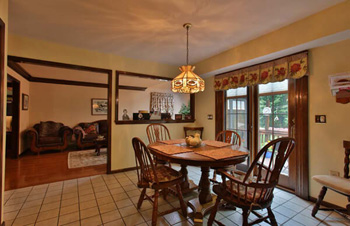
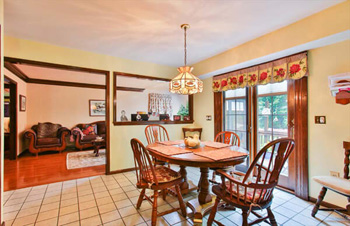
Restoring old and damaged photos
Picture restoration services are essential to keep the memories of the past alive. Hence, we follow a few steps which are below that will let you know what to do to restore it.

1. Downloading picture on a computer
- The first task is to download the photo on to your computer and then open it in the Photoshop application.
- The first step is to get a high-resolution camera or a scanner to get a digital image of the photograph.
- Next, all you need is to save the .jpg file on the highest setting.
- Open Photoshop on your computer.
- Open the picture in Photoshop by clicking on File>open. Then select the photograph in a browser.
- Ensure that your image has 300 DPI (dots per inch) at least. To check it, you can open Image>Image size. The resolution of DPI is shown in a box. If it is 300 or more, you are good to go. If not you have to start from the first step again. Hence, it’s better for professionals to handle photo restoration services.
2. Prepping Image
Secondly, you would have to prep the photo in Photoshop.
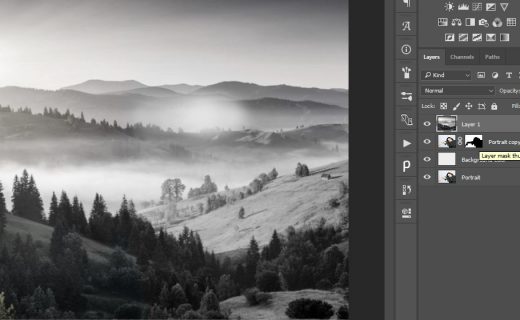
- To do this, create one new layer. Click Layers>Duplicate Layer.
- When naming it, save it as working layer for avoiding confusion with the original picture.
Next step includes cutting the images accurately.
3. Cropping borders
To crop borders:
- Make the picture have ideal boundaries by cropping the sides in perfect order.
- Click, and the drag image’s portion which you want to keep inside dotted lines.
- Finish the crop by pressing Yes option.
Next is contrast and brightness of images.
4. Contrast and brightness
This is a tricky part for photo repair service!
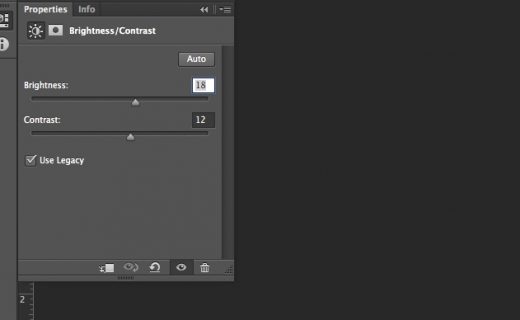
- From Layer>Adjustment Layer>Contrast and Brightness.
- Name new layer as Contrast/Brightness1 and hit ok.
- Toggle slider to change the photo’s brightness after the dialogue box of contrast and brightness appears. Ensure that you do it correctly or you might have to start from the beginning. Make the photograph as clear as possible before moving in contrast. Find the ultimate contrast for your picture.
- Lastly, press Ctrl+E for merging the two.
Colors play a crucial role, so take precautions for next step!
5. Faded color
To adjust faded color:
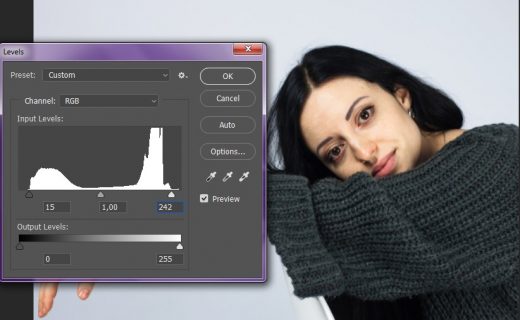
- Go to Picture/Image>Adjustment and then to color balance.
- Ensure checking Preserve Luminosity option for handling contrast and brightness which you just fixed.
- Using sliders adjust colors till you’re satisfied with it and click ok.
- From adjustments, you have to correct the hue saturation till the desired outcome appears.
6. Scratches and dust removal
Spot healing is a friend of all professionals who are into old photo restoration services!
- Go to a tool- Spot healing and click the box of Content-Aware.
- Isolate small patches with zoom in option. Choose a brush depending on photo’s size and use it
- aft6er setting hardness slider at 75%.
- Over dust, specks place Spot healing for removing them.
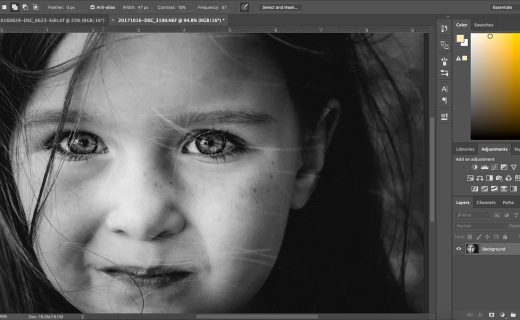
Apart for this if you need more detailing then using Burn tool recreate shadows and for highlights use Dodge tool.
To have best results opt for our photo restoration services now!
Reviews
-
Working with Genius Retouch has been exceptional! I am able to easily and seamlessly explain my photoshop requirements and high quality work is quickly produced and returned. My experience has been nothing short of utmost professionalism.
Photographer
-
This guy is so talented! The post productions are perfect and he’s so fast! Absolutely satisfied!
Photographer
-
I was the lucky to found Genius Retouch services, is a good retouching services, professional, responsable, quick and retailer just you have to check your profile and see your works. Thanks to do my job more easy Genius Retouch..
Photographer
-
What can I say...well, let me start by saying their VERY affordable and courteous on the turn around time. I’ve used them for a few months now and haven’t been disappointed at all! Sometimes, I’ve even asked for a very brief turn around and they’ve ALWAYS delivered accordingly!!!
Photographer
-
Genius Retouch is one of the top notch retoucher in the business. During the time I have worked with genius retoucher, he has maintained production of high quality images within the deadlines provided tomy clients. He has the ability to utilize appropriate digital asset management techniques especially in a high volume environment.
Photographer